 Chiro Lab
I've got a lot of photos piled up on my home Synology NAS. I can make share links to show them to friends, but QuickConnect was so slow that I always hesitated to send one. Google Photos is fast, but it squeezes photos and videos quite a bit, especially videos. On the other hand, I didn't want to open a port on my router and put the NAS directly on the internet.
So I tried two ways to expose only the share links without opening any ports: Cloudflare Tunnel and Tailscale Funnel. This post is how it went.
Let me give you the conclusion first. Both of them let me open share links from outside without opening a port. Cloudflare felt a little smoother, but Tailscale is perfectly usable too. I wanted the URL to have nothing to do with my own domain, so I went with Tailscale.
What are Cloudflare and Tailscale?
Cloudflare Tunnel

Cloudflare is a company that handles website delivery and security, with servers all over the world. Tunnel is a feature that makes your NAS at home open a connection toward Cloudflare. You don't need a hole into your home network (an open port), and you can publish the service under your own domain. The free plan is enough for personal use.
Tailscale Funnel

Tailscale is a VPN service that safely connects your computers, NAS and other devices into one network. Funnel is one of its features. It lets you publish a service at a URL like xxx.ts.net, even to people who don't use Tailscale. This is also free for personal use.
What to expose
A Synology Photos share link is a URL that starts with /mo/sharing/. I used the browser's developer tools to see what actually happens on the network when such a link is opened. The share page used only these two paths:
- Everything under
/mo/sharing/(the page itself, UI parts, and fetching album information) - Everything under
/synofoto/api/v2/p/(fetching thumbnails and photos)
The login screen and the API for the photos in my personal space were not used by the share page. So my plan was to expose only these two paths and let nothing else through.
Preparation: a dedicated port for Photos
In the DSM Control Panel, under the Login Portal, I assigned a custom port to Synology Photos. I enabled only the HTTP port and set it to 5080. Now http://<NAS IP>:5080 on the NAS returns only Photos, not the DSM login screen. Both methods below expose this port.
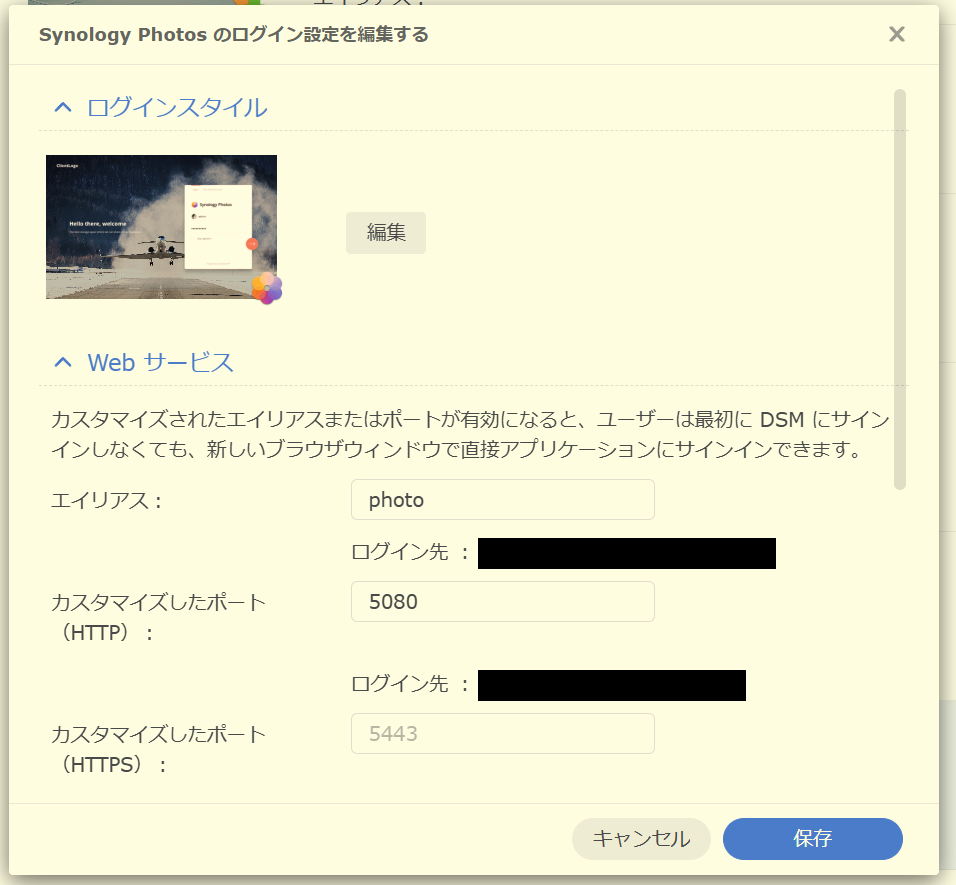
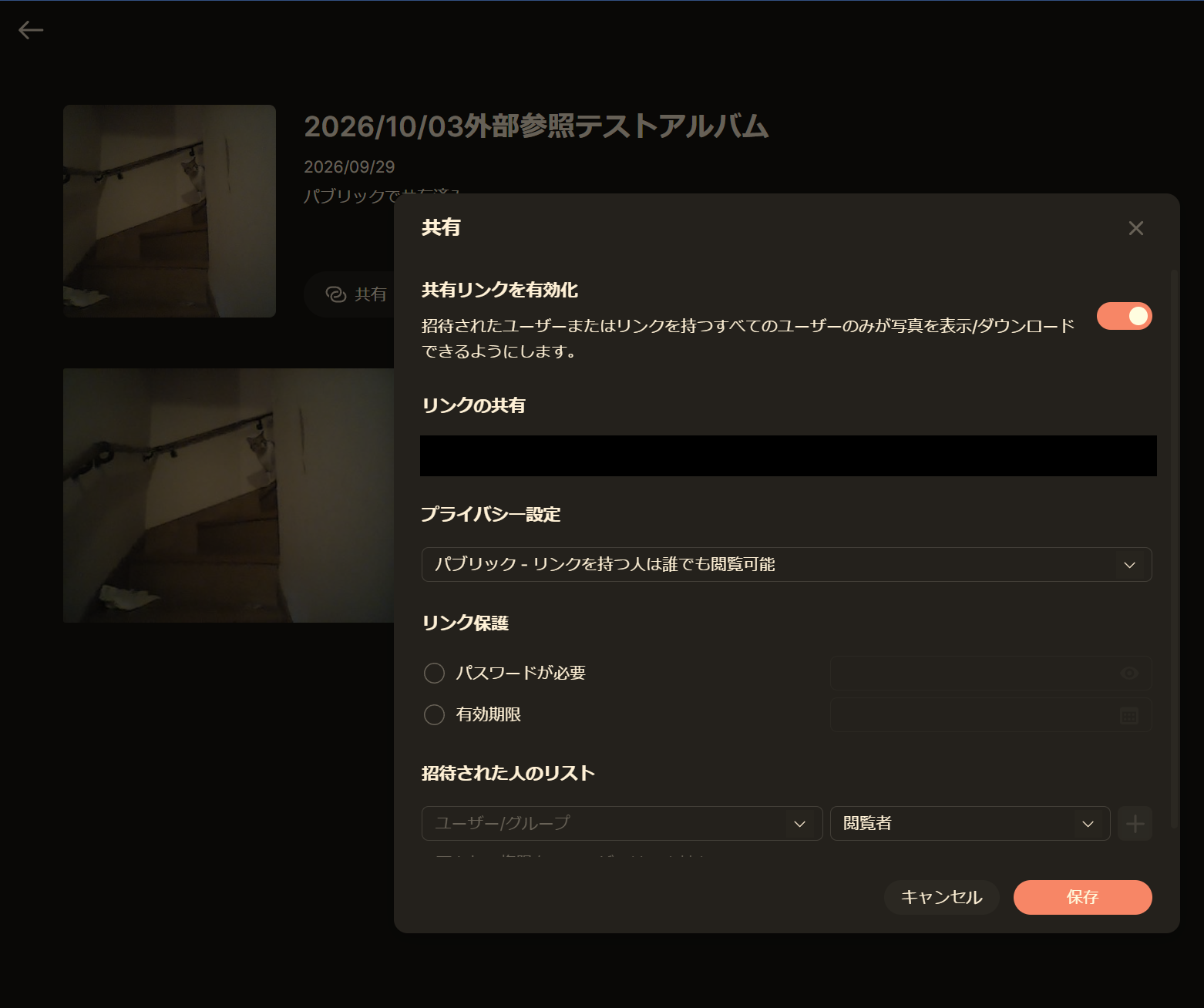
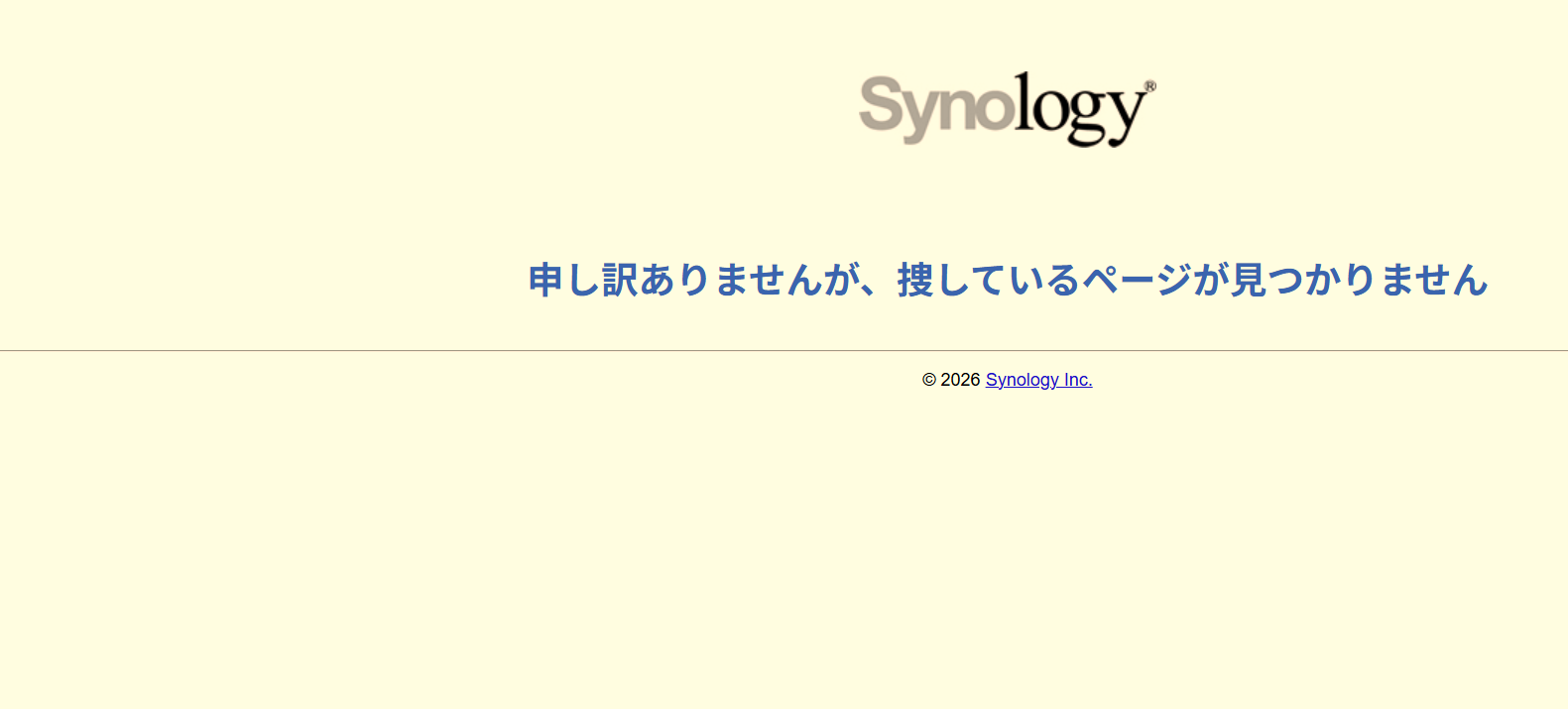
I got stuck on one thing here. A share link issued by Photos looks like https://<hostname>/photo/mo/sharing/<ID>, but on the dedicated port there's no /photo in the path. If you only swap the hostname you get "page not found", so you have to remove /photo as well.
Method 1: Cloudflare Tunnel
Cloudflare Tunnel makes the NAS open a connection toward Cloudflare. You don't need a hole into the NAS from outside. However, you must have your own domain registered with Cloudflare. That costs from about a thousand yen to a few thousand yen a year. I don't expect many people to own a domain just for this...
Creating the Tunnel and running it on the NAS
When you create a Tunnel in Cloudflare Zero Trust (the free plan), a token is shown. This token is the value you give to cloudflared, which runs in Container Manager on the NAS. Container Manager doesn't create the folders named in docker-compose.yml automatically. You have to create them beforehand in File Station. The token is the key to the tunnel, so I was careful not to show it to anyone.
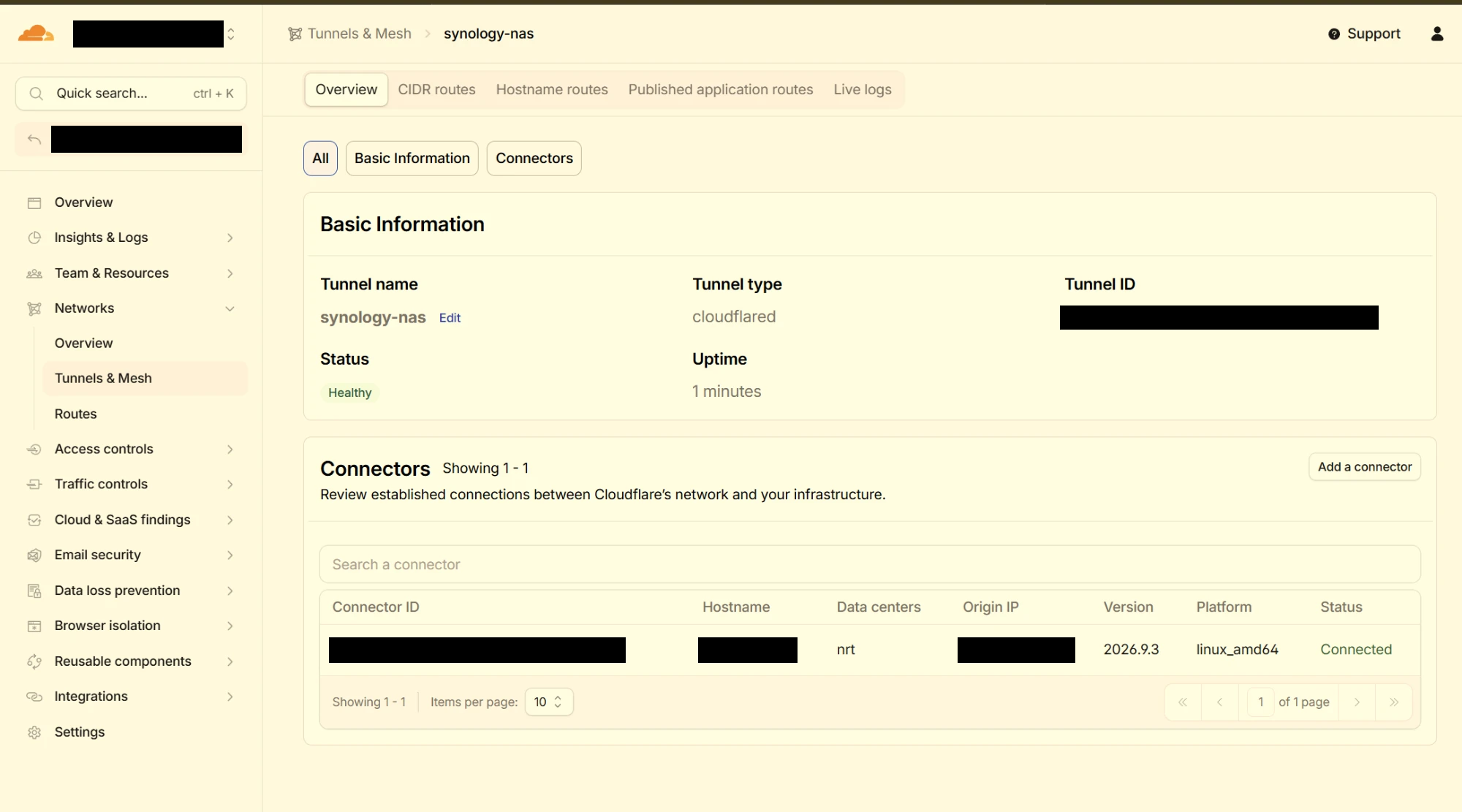
If the Tunnel turns green as Healthy and the connector shows Connected, it worked. For the destination of the public hostname I specified <NAS IP>:5080 over HTTP.
Blocking everything except share links with the WAF
As it's, the Photos login screen is also visible from outside. So I used a custom rule in Cloudflare's WAF to block every path except the ones I wanted to publish. I got stuck here too. If you open WAF from the left menu, you see the screen for the paid add-on that applies to the whole account. What you can use on the free plan is Security rules, inside Security after you open your domain.
The rule expression is below.
(http.host eq "photos.<my domain>" and not starts_with(http.request.uri.path, "/mo/sharing/") and not starts_with(http.request.uri.path, "/synofoto/api/v2/p/") and not starts_with(http.request.uri.path, "/cdn-cgi/"))The action is Block. After saving, opening the top page showed "Sorry, you have been blocked". Share links still open as before. It's a relief that the login screen can't be opened from outside anymore.
Method 2: Tailscale Funnel
Tailscale has a feature called Funnel. It can publish a service at a xxx.ts.net URL, even to people who don't use Tailscale. The people receiving the link don't need to install an app or configure anything, and you don't need your own domain, which is a point where it beats Cloudflare.
Preparation
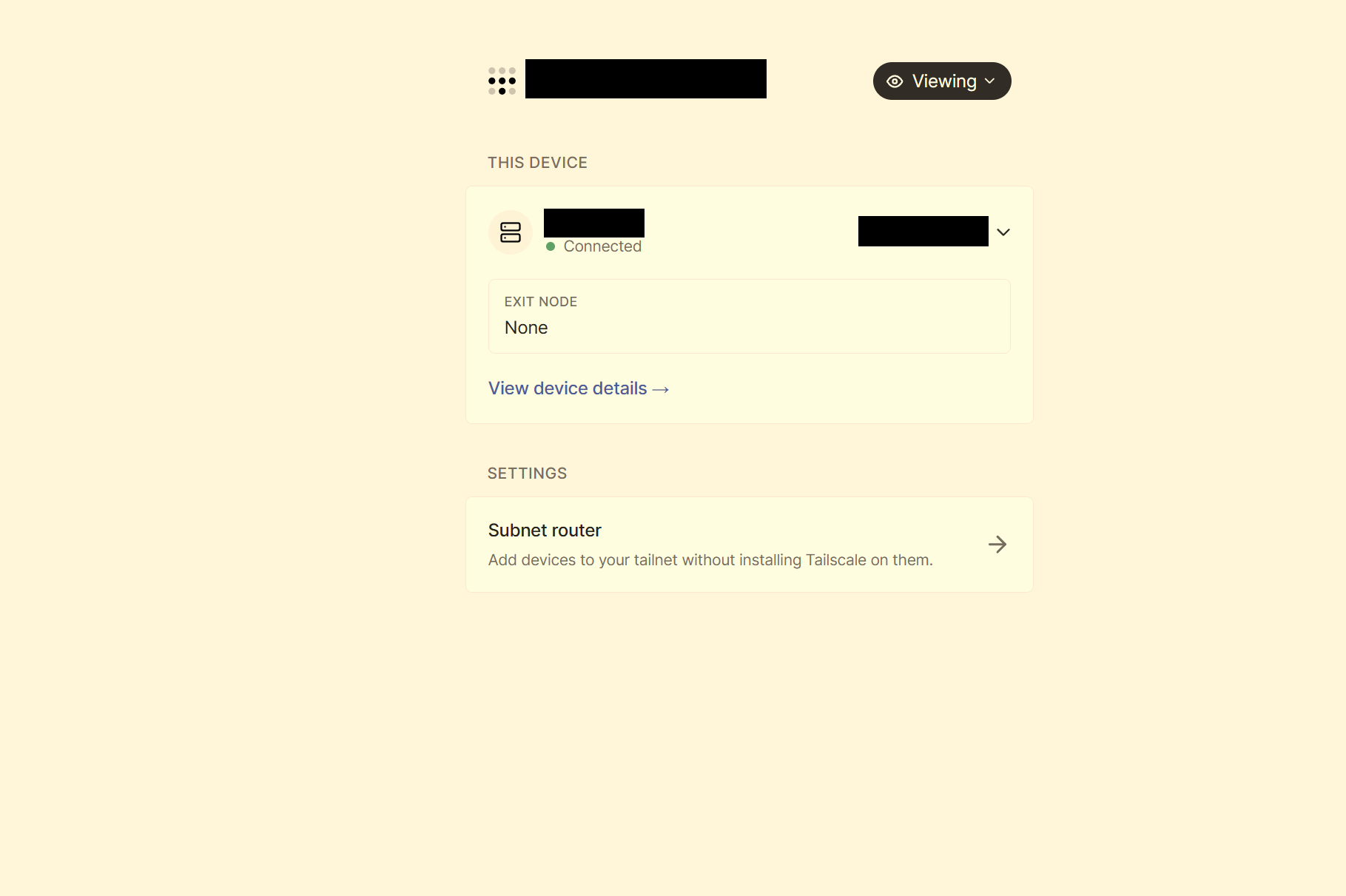
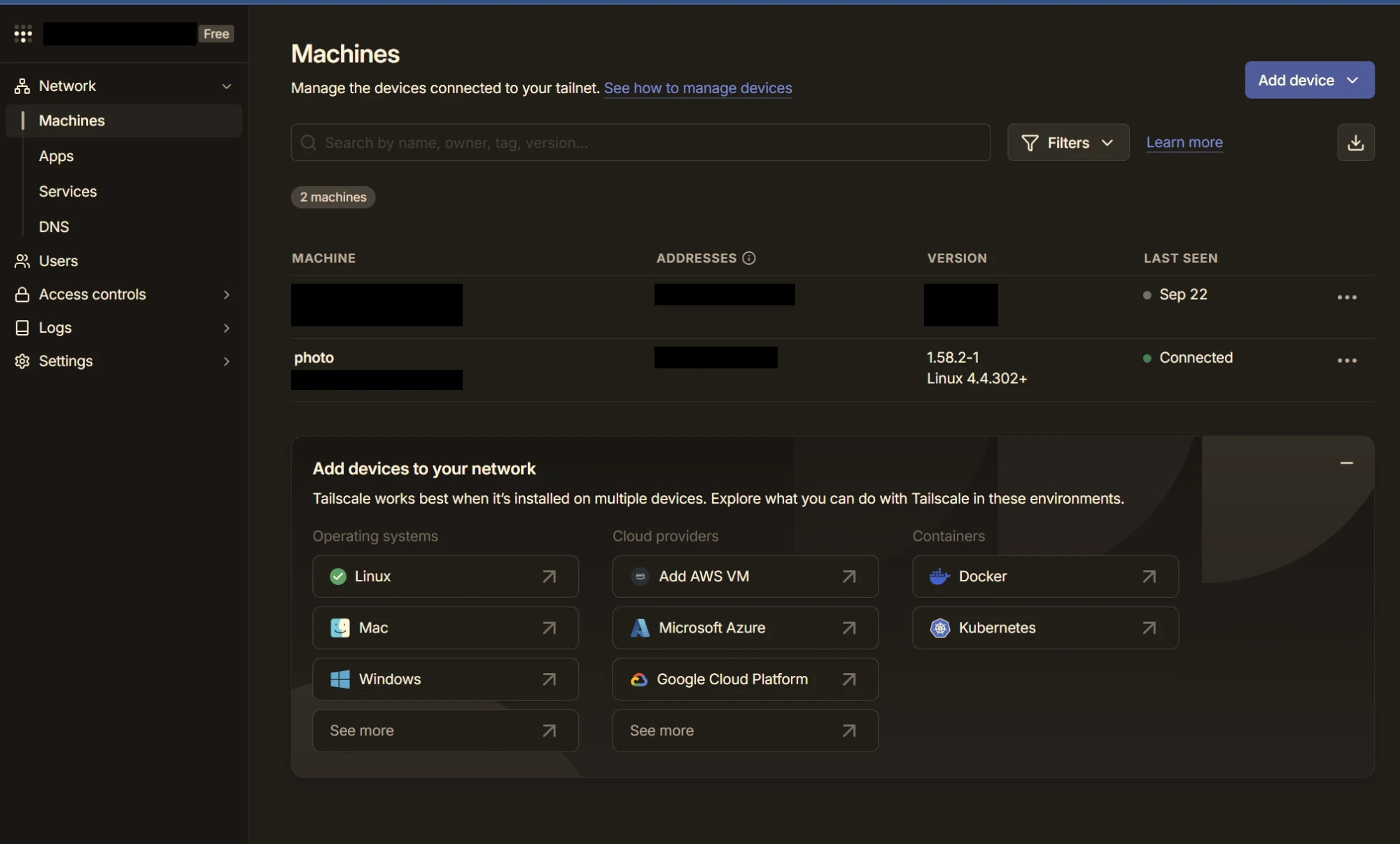
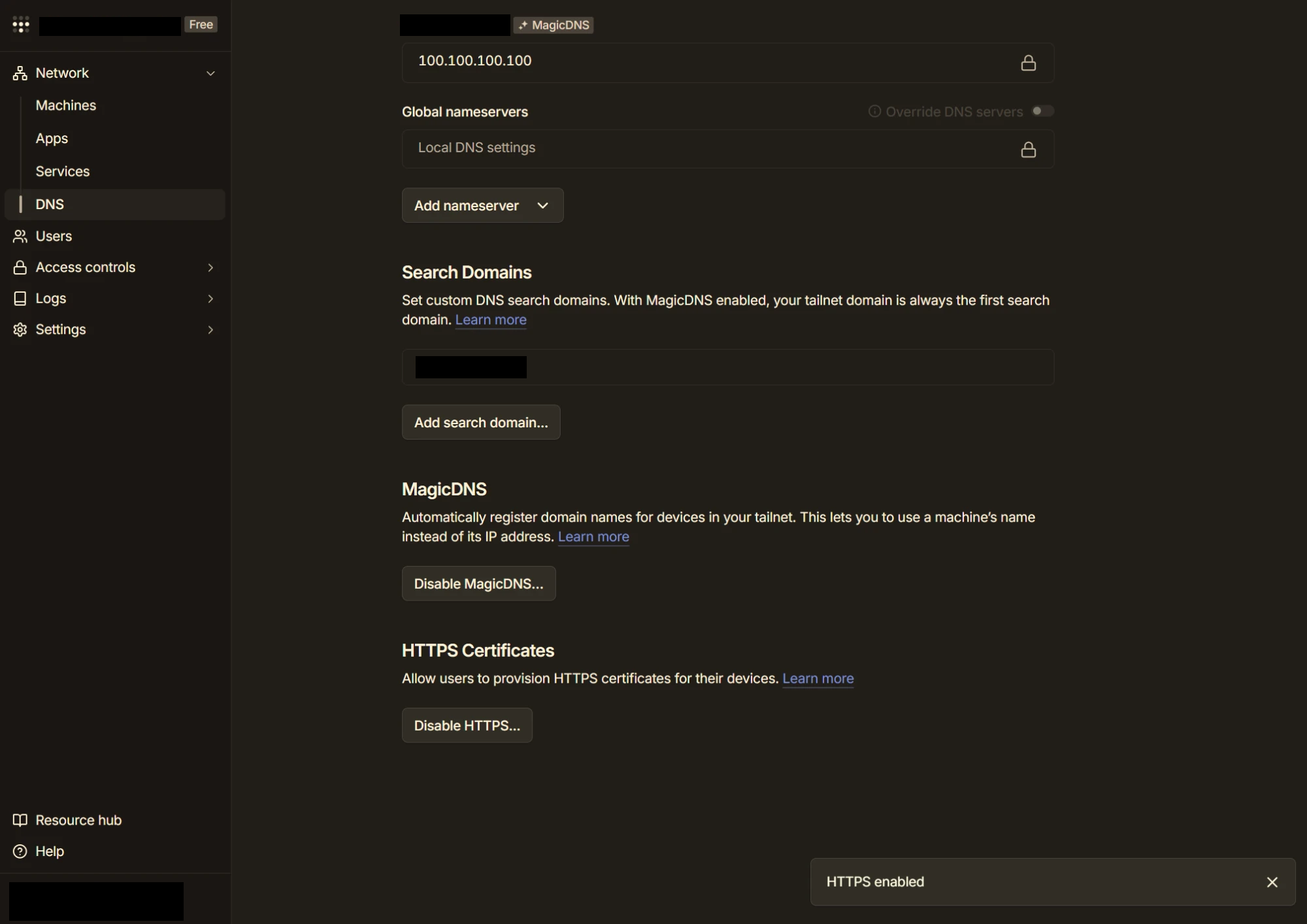
I installed Tailscale from the NAS Package Center and logged in with my account. In the Tailscale admin console, I enabled MagicDNS and HTTPS certificates. The device name ends up in the URL, so I also renamed the NAS to something not easy to guess.
Setting up Funnel
I logged in to the NAS over SSH and registered the same two paths as with Cloudflare in Funnel.
sudo tailscale funnel --bg --set-path=/mo/sharing http://127.0.0.1:5080/mo/sharing
sudo tailscale funnel --bg --set-path=/synofoto/api/v2/p http://127.0.0.1:5080/synofoto/api/v2/p
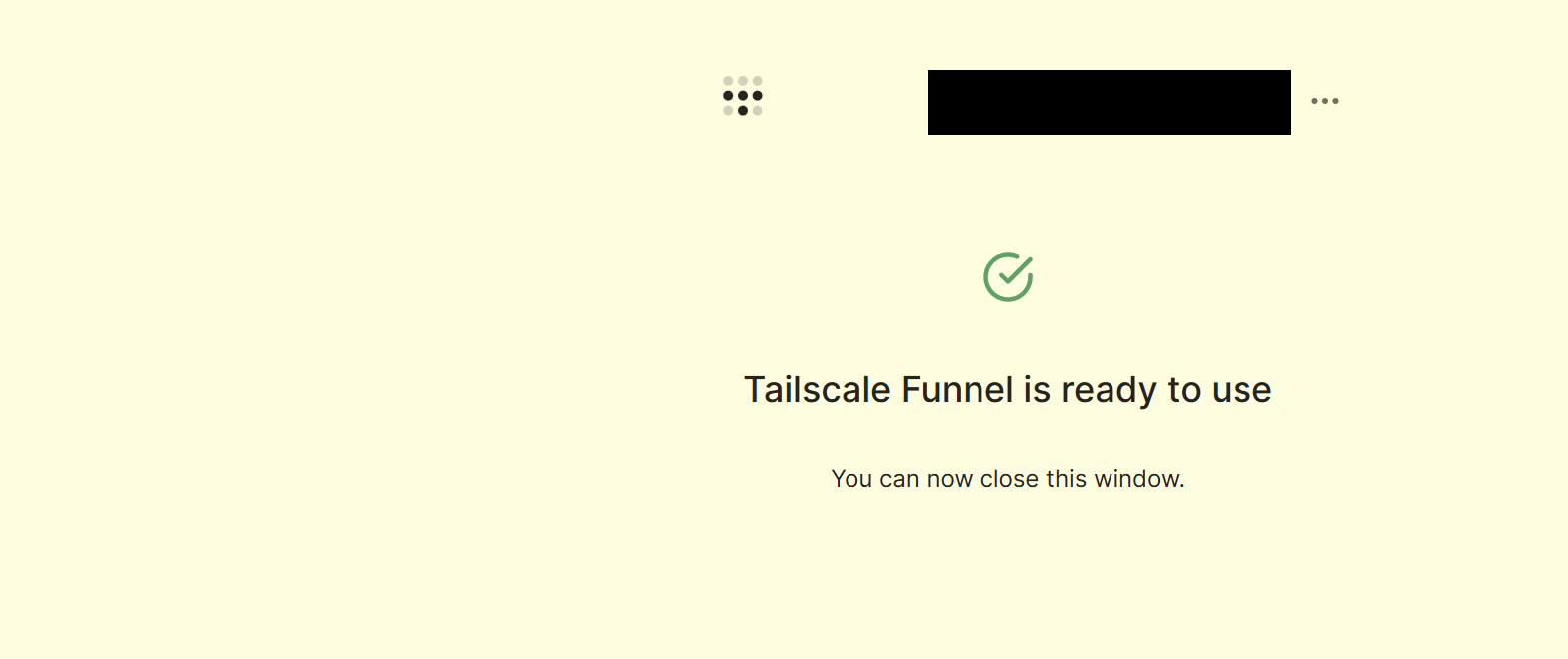
The first time, a URL for approving Funnel is shown. Open it in a browser and approve, and you can use it from then on.
After the setup I checked from outside. Every path other than the two I registered, including the login screen, returned 404. Just by specifying the paths to publish, I got the same effect as a WAF, without writing a separate rule.
Running funnel status shows the two published paths. The hostname is hidden.
https://photo.<my tailnet>.ts.net (Funnel on)
|-- /mo/sharing        proxy http://127.0.0.1:5080/mo/sharing
|-- /synofoto/api/v2/p proxy http://127.0.0.1:5080/synofoto/api/v2/p
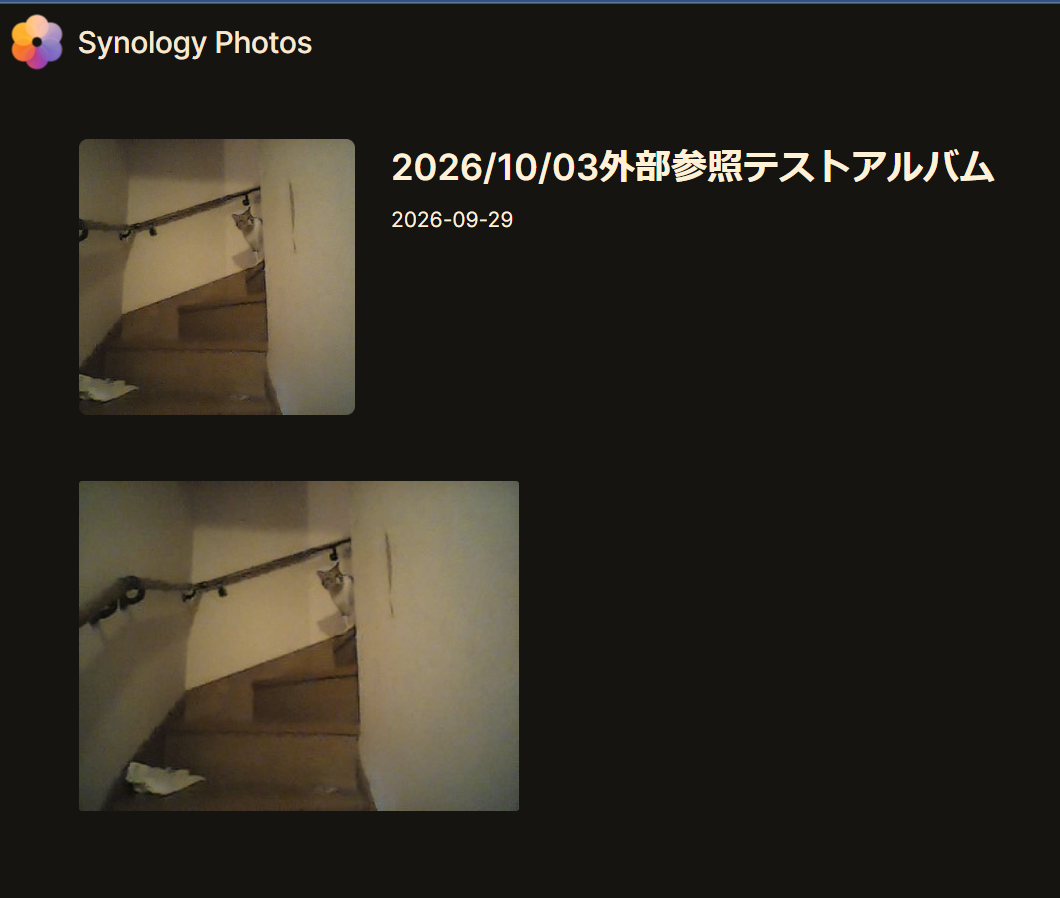
When I opened the share link on my phone over the mobile network, the album appeared. (The screenshot below was taken on a PC, though...)
After using both
On my phone over the mobile network, I opened the same album with both methods and compared them. Cloudflare displayed it a little more smoothly. Tailscale felt a bit slower, but I figured it was good enough. (I didn't measure anything. This is purely how it felt.)
| Cloudflare Tunnel | Tailscale Funnel | |
|---|---|---|
| URL | My own domain | xxx.ts.net |
| Preparation | A domain is required | No domain needed |
| Narrowing down | WAF rule | --set-path command |
| Access visibility | Visible in the analytics screen | Hardly visible |
| How it felt | A little smoother | Practical enough |
The reason I chose Tailscale was that I didn't want my own domain to appear in the URL. With Cloudflare, the domain name appears in the URL. I could have bought a separate domain for it, but I didn't want to go that far.
On the other hand, if you want to know how many times a friend viewed the album, or whether there's any suspicious access, Cloudflare is better suited. Tailscale Funnel has no feature for viewing access logs, so I think it isn't great for that kind of management.
Things to keep in mind when sharing
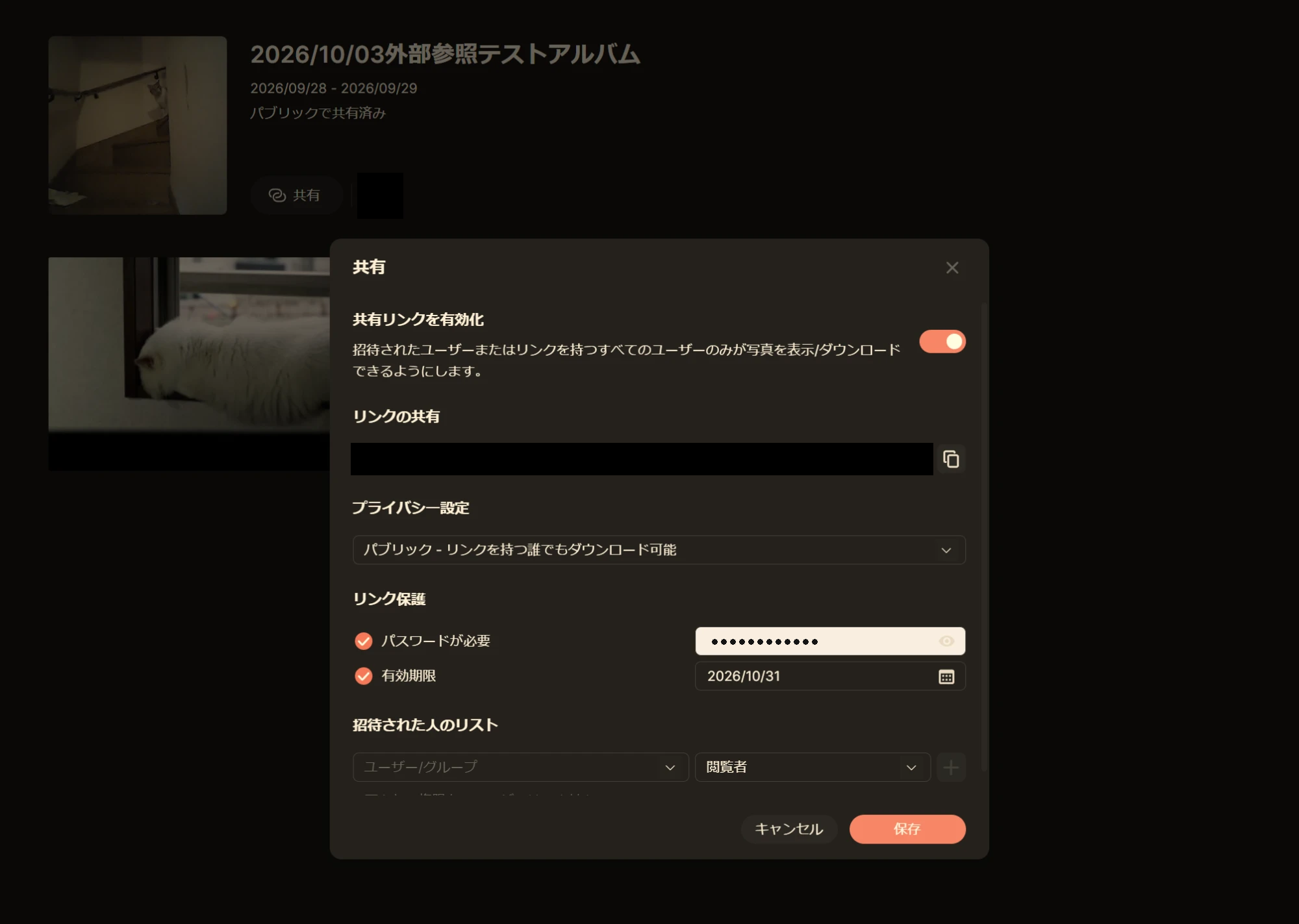
Anyone who knows the ID can open a share link. So it's better to add a password and an expiry date to the links you share with people. Turn sharing off promptly once you're done with it.
For my DSM account I use a strong password and two-factor authentication, and I also enabled auto block. However, traffic that comes through Cloudflare or Tailscale looks to the NAS as if it came from the NAS itself, so I can't expect auto block to stop the IP address of a suspicious outsider. I think the best defense is to keep the login screen invisible from outside.
I once installed Pi-hole to monitor my home network, but it couldn't detect access coming in from outside. Pi-hole can only see the DNS queries that devices in my home send out.
Wrapping up
I can now share photos and videos on my NAS with friends without opening a port, and they can view them reasonably smoothly. If any problems come up as I keep using it, I'll write about them again.
I hope this helps anyone who wants to share NAS photos the same way!
Take care,
Comments